How to Extract Audio From an Instagram Reel as MP3
Key takeaways
- Instagram's Save audio button only bookmarks a sound inside the app; it does not create a file.
- Pasting a public Reel link into an audio downloader returns the Reel's soundtrack as an MP3.
- On iOS 26, an MP3 under 30 seconds can be set as a ringtone from Files → Share → Use as Ringtone.
- On Android, add the MP3 under Settings → Sound & vibration → Phone ringtone.
To extract the audio from an Instagram Reel, copy the Reel’s link, paste it into the Instagram Reel audio downloader, and tap Download MP3. You get the full soundtrack of the Reel — the song, the voice-over, or the original sound — as a regular MP3 file you can keep, play anywhere, or set as a ringtone.
“Save audio” in Instagram is not a download
Tap the audio name at the bottom of any Reel and Instagram opens that sound’s page with a Save audio button. It is easy to assume that saves the song. It does not.
| Instagram “Save audio” | Extract as MP3 | |
|---|---|---|
| Where it ends up | A Saved list inside Instagram | A file in your Downloads folder |
| Works offline | No | Yes |
| Use in your own Reel | Yes, from the audio picker | Yes, as part of a video you upload |
| Use as ringtone or alarm | No | Yes |
| Play in other apps | No | Yes |
So if you want the sound for a new Reel made inside Instagram, Save audio is enough. For everything else you need the file.
Extract audio from a Reel in three steps
- Copy the link. On the Reel, tap the three dots or the share arrow, then Copy link.
- Paste it. Open the audio downloader, paste the link into the box, and press Enter.
- Save the MP3. After a few seconds, tap Download MP3.
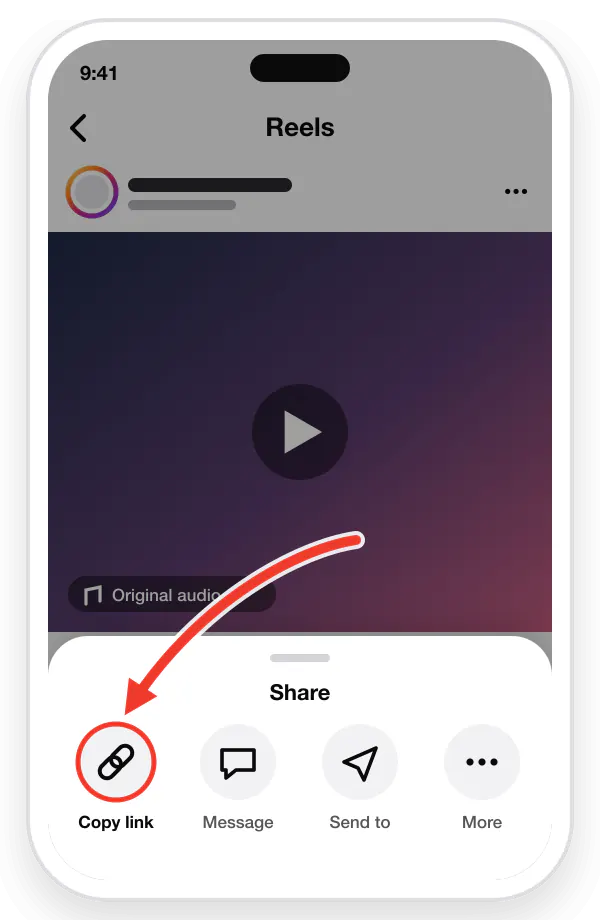
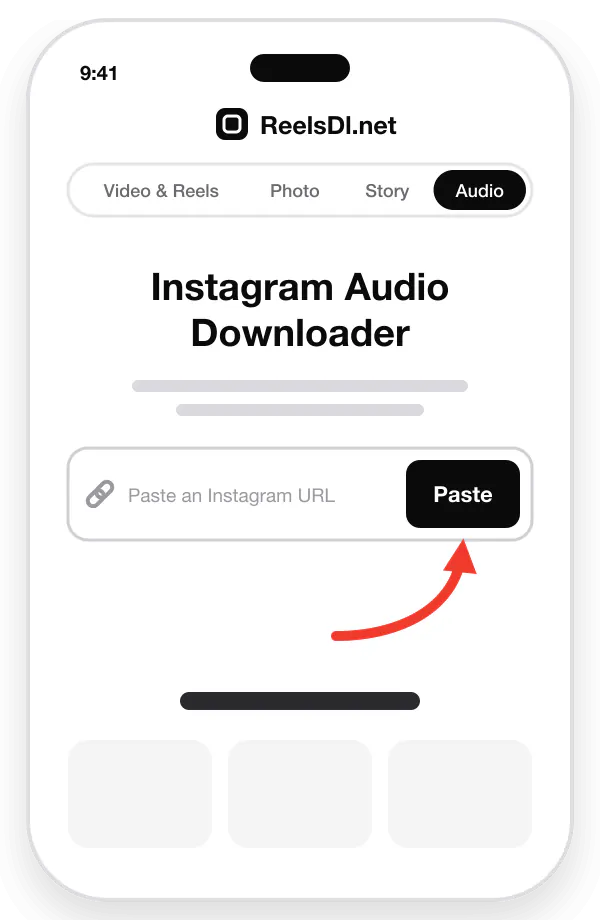
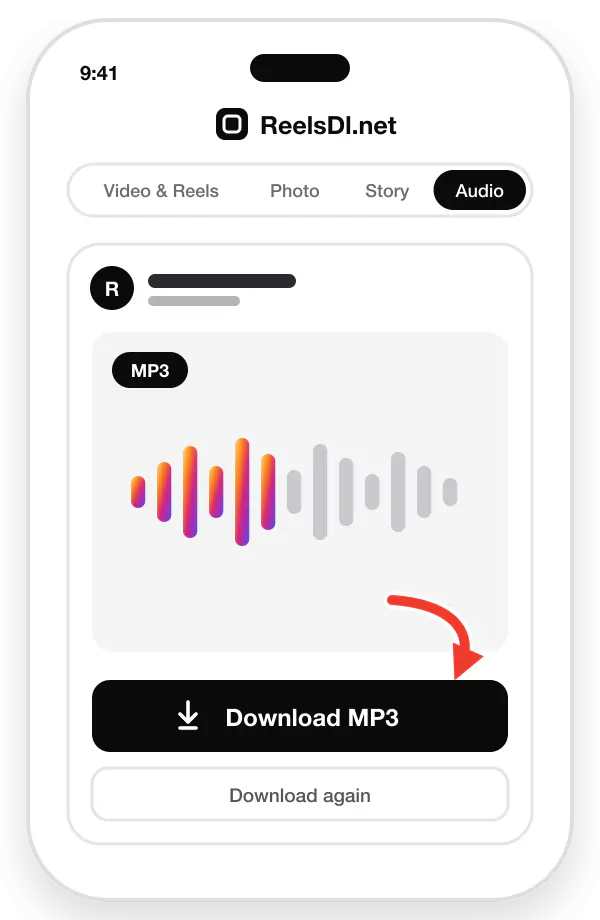
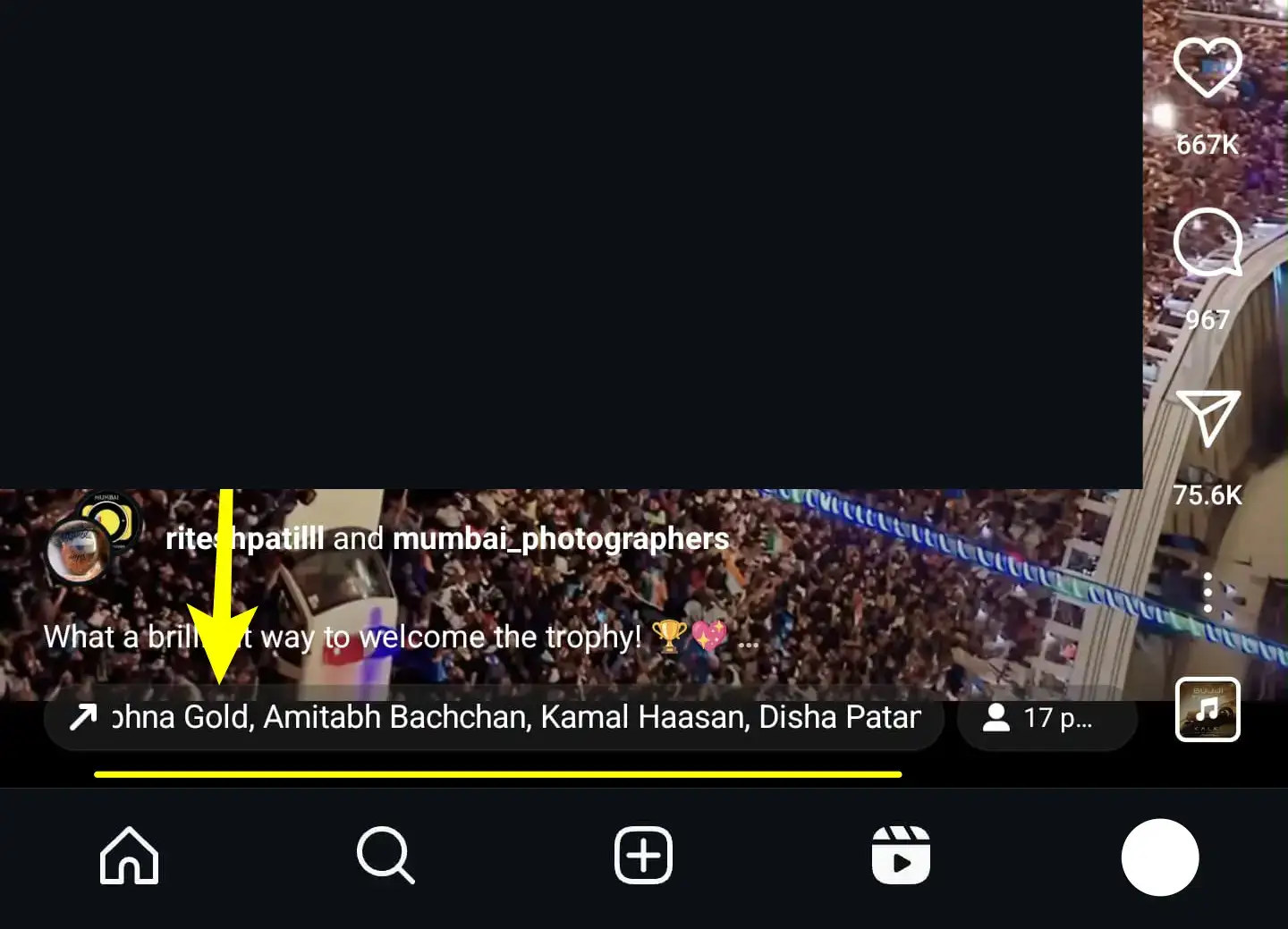
You can also start from the audio page itself. Tap the song name on the Reel, tap the three dots on the audio page, and choose Copy link. That link works in the same box.
The steps are identical on iPhone, Android, Windows, and Mac. Nothing is installed and you do not log in to Instagram.
Where the MP3 is saved
- iPhone: Files → Downloads. It will not appear in Apple Music; play it from Files or share it to another app.
- Android: the Download folder. Music players such as YouTube Music, Samsung Music, or VLC pick it up from there.
- Computer: your browser’s Downloads folder.
Use the Reel audio as a ringtone
On Android
- Open Settings → Sound & vibration → Phone ringtone.
- Tap My Sounds (Pixel) or the + button (Samsung).
- Pick the MP3 from your Download folder.
Android accepts the whole file, though a ringtone only plays for about 30 seconds before the call goes to voicemail.
On iPhone
iOS 26 made this simple. The clip has to be shorter than 30 seconds, so trim it first if needed.
- Open the Files app and find the MP3 in Downloads.
- Tap and hold the file, then tap Share.
- Choose Use as Ringtone. If you do not see it, tap More.
The tone appears at the top of the list in Settings → Sounds & Haptics → Ringtone.
On older versions of iOS there is no direct option. The free GarageBand app can import the MP3 and export it as a ringtone, which takes a few more minutes.
Use it as an alarm
- Android: open the Clock app, tap an alarm, tap the sound name, then Add new and choose the MP3.
- iPhone: alarms use the ringtone list. Add the clip as a ringtone using the steps above, then go to Clock → Alarms → Edit → Sound and select it.
Trim the clip first
Reels often start with a few seconds you do not want. Two easy ways to cut the MP3:
- On a phone: many file managers and music apps include a trim tool, and Samsung’s built-in sound picker lets you choose the highlight.
- On a computer: Audacity is free. Open the MP3, select the part you want, and export the selection.
When there is no audio to extract
- The audio was removed. If the Reel shows “This audio is no longer available”, the track is gone at the source.
- The Reel is private. Private posts cannot be reached by link.
- The post is a photo. Photo posts with a song attached do not always carry an audio file that can be extracted.
- The link is wrong. A profile link or a search page is not a Reel link. Copy it again from the Reel itself.
If you actually want the video with its sound and not only the sound, see how to save Reels in your gallery with music.
Using Reel audio responsibly
Most songs you hear in Reels are commercial recordings. Keeping a clip on your own phone as a ringtone is personal use. Putting that song into a video you publish, or sharing the file, is a different matter and normally needs permission from whoever owns the recording. If you need music for your own content, pick a track from Instagram’s audio library inside the app or use royalty-free music.
Frequently asked questions
Can I download the audio from an Instagram Reel?
Yes, if the Reel is public. Copy the Reel link, paste it into the ReelsDl.net audio downloader, and save the MP3. Instagram's own Save audio button only bookmarks the sound inside the app.
How do I extract audio from an Instagram Reel on iPhone?
Copy the Reel link in Instagram, open the ReelsDl.net audio downloader in Safari, paste the link, and tap Download MP3. The file is saved to the Downloads folder in the Files app.
Can I use Instagram Reel audio as a ringtone?
Yes. Download the audio as an MP3 first. On Android, add it under Settings, Sound and vibration, Phone ringtone. On iPhone with iOS 26, open the file in Files, tap Share, and choose Use as Ringtone. The clip must be under 30 seconds.
What quality is the MP3?
The MP3 is made from the audio track Instagram serves with the Reel. Instagram compresses audio on upload, so the result is good for listening and ringtones but is not a studio-quality copy of the song.
Is it legal to download music from an Instagram Reel?
Songs in Reels are copyrighted. Keeping a clip for personal listening is treated differently from re-uploading or using it in your own content, which usually needs a licence or the owner's permission. This is general information, not legal advice.