# How to Download Instagram Videos on iPhone
Source: https://reelsdl.net/blog/download-instagram-videos-on-iphone
Publisher: ReelsDl.net
Last updated: 2026-10-25
> Save any public Instagram video or Reel to your iPhone camera roll in HD, with sound and no watermark. No app needed: just Safari, Files, and Photos.
## Key takeaways
- Instagram's built-in Download option only appears on some public Reels and adds a watermark.
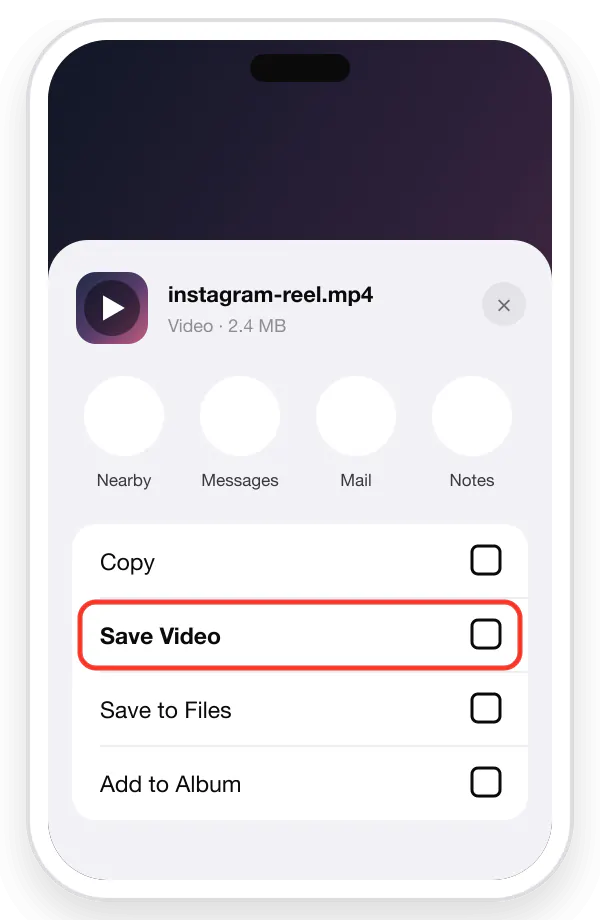
- In Safari, a downloaded video goes to Files → Downloads first; Share → Save Video moves it to Photos.
- Downloading by link saves the original MP4 with sound, sharper than a screen recording.
- No app or shortcut is needed, and you never type your Instagram password.
The quickest way to download an Instagram video on an iPhone is to copy its link in Instagram, paste it into the [Instagram video downloader](https://reelsdl.net/) in Safari, and tap **Download**. The video lands in *Files → Downloads*; from there, **Share → Save Video** puts it in your camera roll. No app is needed, the file keeps its sound, and there is no watermark.
## What Instagram lets you do (and what it doesn't)
Instagram has slowly added saving options, but each has a catch:
- **The in-app Download button** only appears on public Reels whose creators allow it, and the saved file carries an Instagram logo and the creator's username. It never appears on ordinary video posts or carousels.
- **The bookmark (Save)** keeps the post in a collection inside Instagram. Nothing is stored on your phone, and the post vanishes if the owner deletes it.
- **Screen recording** captures your screen at screen resolution, includes the interface, and has to run for the full length of the video.
Downloading by link avoids all three problems: you get the actual MP4 Instagram streams, at its best quality, in seconds.
## Step 1: Copy the video link
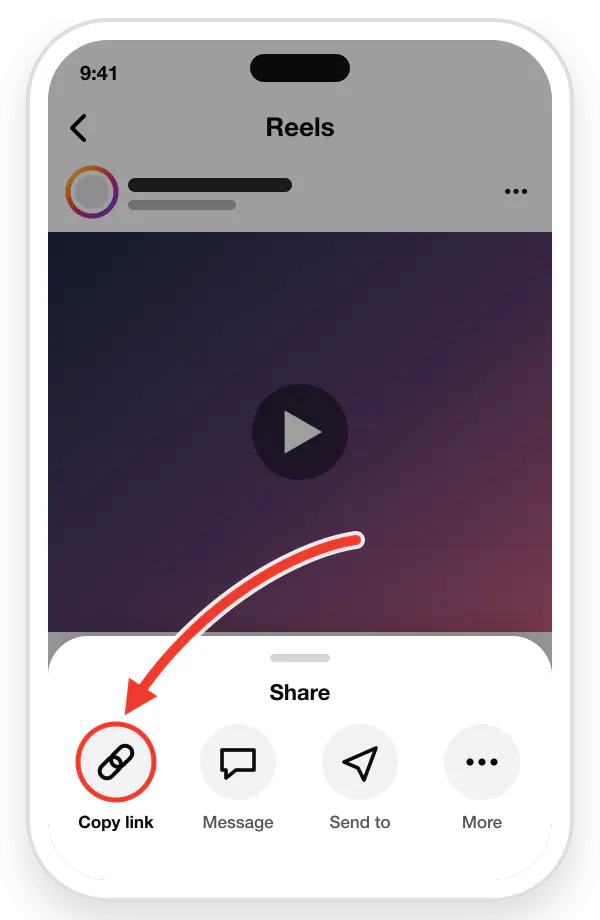
1. Open the video or Reel in the Instagram app.
2. Tap the **Share** arrow (paper plane) or the **three dots**.
3. Tap **Copy link**.
The link looks like `instagram.com/p/…` for a video post or `instagram.com/reel/…` for a Reel. Both work.
Copy the link
## Step 2: Paste it into the downloader in Safari
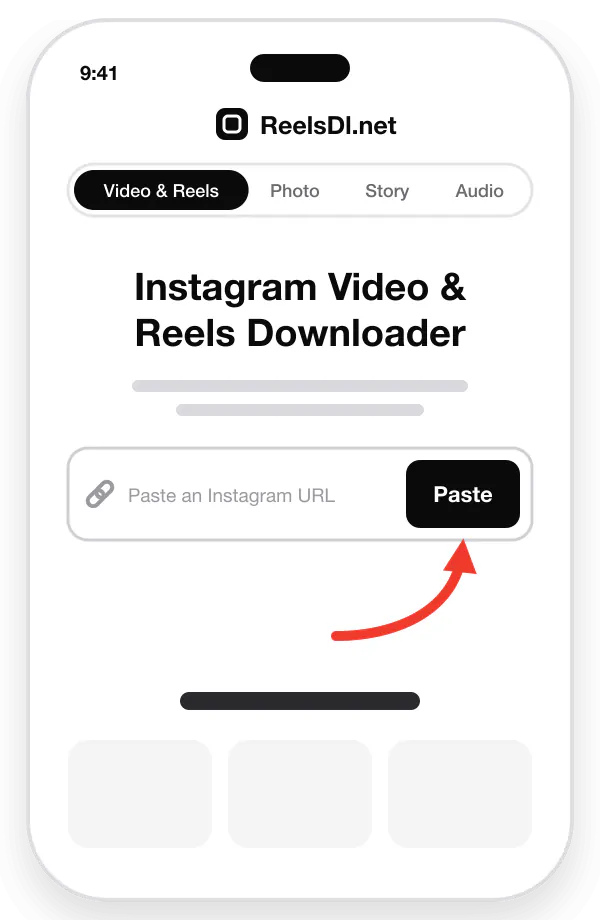
1. Open **Safari** and go to [reelsdl.net](https://reelsdl.net/).
2. Tap the input box and choose **Paste**, or tap the **Paste** button next to it.
3. The video preview appears after a second or two.
Paste it here
## Step 3: Download and move it to Photos
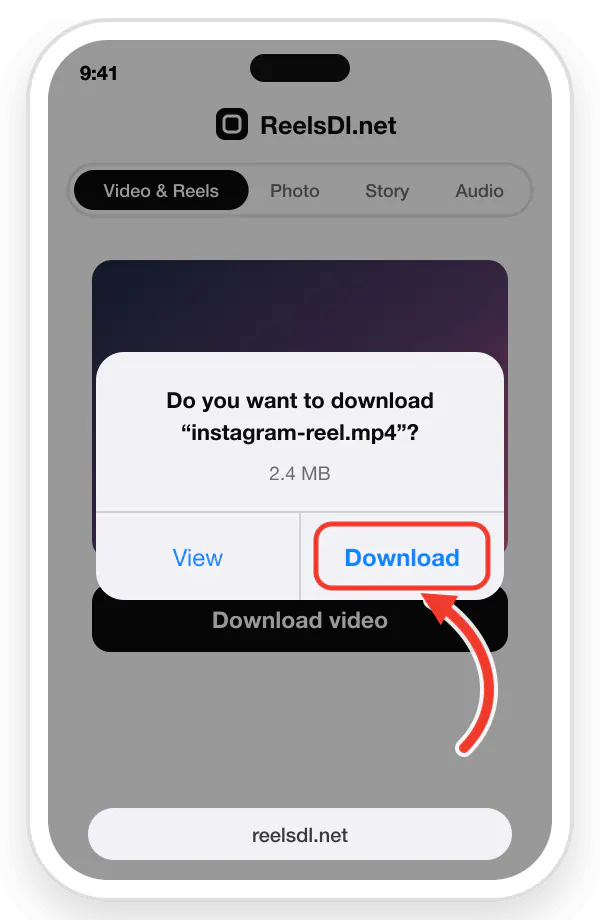
1. Tap **Download video**. Safari asks whether to download the file; tap **Download**.
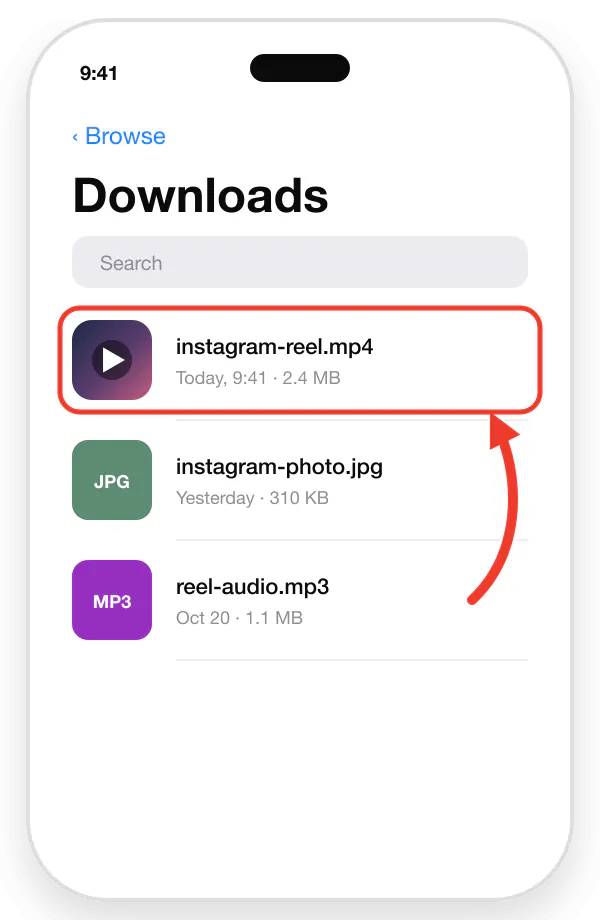
2. A blue arrow appears in the address bar. Tap it, then tap the video to open it. Or open the **Files** app and go to **Downloads**.
3. Tap the **Share** icon and choose **Save Video**.
The video is now in the Photos app, in *Recents*, ready to watch offline, trim, or share.
Safari asks before saving. Tap Download.The video lands in Files → Downloads.Share → Save Video puts it in Photos.
## Using Chrome instead of Safari
The steps are the same, but Chrome on iPhone keeps downloads in its own folder: *Files → On My iPhone → Chrome*. Open the file there and use **Share → Save Video** to move it to Photos. Safari is a little simpler because its downloads button sits in the address bar.
## Saving Reels, carousels, and Stories
The same three steps work for every public format, with a dedicated page for each:
| You want | Use | Saved as |
| --- | --- | --- |
| A video post, IGTV clip, or Reel | [Instagram Reels downloader](https://reelsdl.net/) | MP4 with sound |
| Photos or a carousel | [Photo downloader](https://reelsdl.net/photo) | JPG (videos in carousels as MP4) |
| A Story or Highlight | [Story downloader](https://reelsdl.net/stories) | MP4 or JPG |
| Only the song or voice | [Audio downloader](https://reelsdl.net/audio) | MP3 |
For carousels, paste the post link once and each slide gets its own download button.
## Troubleshooting on iPhone
**The video does not appear in Photos.** It is still in *Files → Downloads*. Safari never saves straight to Photos; you need the **Save Video** step. More fixes are in [Reels not saving to your camera roll](https://reelsdl.net/blog/instagram-reels-not-saving-to-camera-roll).
**There is no sound.** Check the silent switch (or Action button on newer iPhones) and the volume. If the video still plays silently, Instagram may have muted the music for copyright reasons, which affects every copy.
**"We could not fetch that link."** The account is private, the post was deleted, or the link was copied incompletely. Open the link in a Private tab in Safari: if Instagram asks you to log in to see it, it cannot be downloaded.
**Downloads go to iCloud and take a while.** In *Settings → Apps → Safari → Downloads*, choose **On My iPhone** to save locally instead.
## Make it one tap next time
Tap the **Share** button in Safari while on reelsdl.net and choose **Add to Home Screen**. The downloader then opens like an app, straight from your home screen, with no App Store download and no permissions.
## Use downloads responsibly
Saving a video to watch offline or keep as a reference is common. Re-uploading someone else's video, or using it in your own content, requires the creator's permission. Credit them when they say yes.
## Frequently asked questions
### How do I save an Instagram video to my iPhone camera roll?
Copy the video's link in Instagram, paste it into ReelsDl.net in Safari, and tap Download. Open Files, then Downloads, tap the video, tap Share, and choose Save Video. It then appears in Photos.
### Where do downloaded videos go on iPhone?
Safari saves downloads to the Downloads folder in the Files app, which is in iCloud Drive by default. You can change the location in Settings, Apps, Safari, Downloads. Chrome on iPhone saves to Files, On My iPhone, Chrome.
### Why is there no Download button on some Instagram videos?
Instagram shows its Download option only on public Reels whose creators allow downloads, and not on regular video posts. Downloading by link works on any public video.
### Do I need an app to download Instagram videos on iPhone?
No. Safari, the Files app, and Photos are enough. Avoid App Store downloaders that ask for your Instagram login.
### Will the downloaded video have sound?
Yes. The MP4 includes the original audio track. If you hear nothing, check the silent switch or Action button and the volume, then play the video in Photos.