# How to Download Instagram Reels Without a Watermark
Source: https://reelsdl.net/blog/download-instagram-reels-without-watermark
Publisher: ReelsDl.net
Last updated: 2026-10-25
> Why Instagram stamps a watermark on downloaded Reels, and three ways to save a clean copy on iPhone, Android, or PC, including your own Reels.
## Key takeaways
- Instagram adds its logo, the creator's username, and the audio name to every Reel saved with the in-app Download button, and there is no setting to turn that off.
- The watermark is added at download time; the Reel that plays in the feed has none, so a copy fetched by link is clean.
- For your own Reels, the cleanest copy is the file you exported before uploading.
- A downloader cannot remove a logo or text the creator placed in the video before posting.
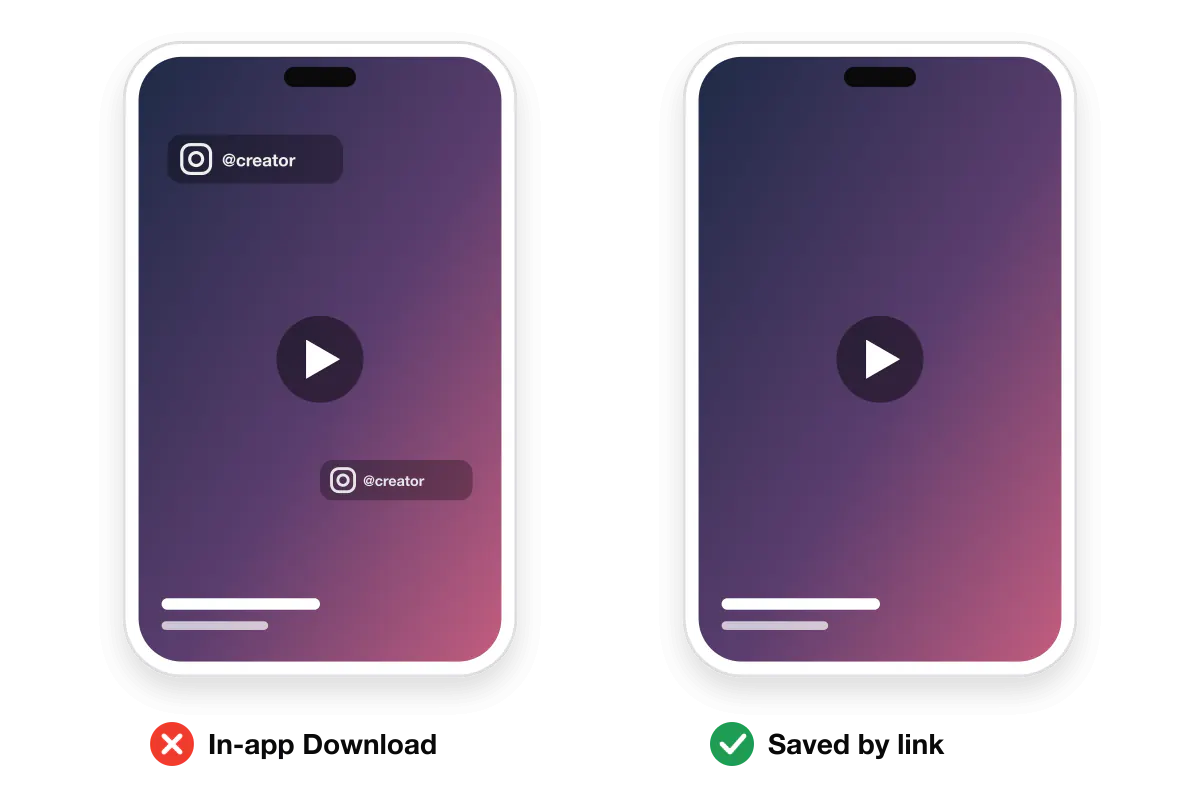
Reels saved with Instagram's own **Download** button come with a floating Instagram logo and the creator's username on top of the video. To get a clean copy, download the Reel **by its link** instead: copy the link, paste it into the [Instagram Reels Downloader](https://reelsdl.net/), and save the MP4. That file is the video as it was uploaded, with no overlay added.
## What the Instagram watermark is
When you tap *Share → Download* on a public Reel, Instagram does not hand you the original file. It builds a new copy and adds:
- the Instagram logo,
- the creator's **@username**,
- the name of the audio.
In-app Download adds a logo and username. A copy saved by link has none.
Instagram's Help Center describes this as standard for every downloaded Reel. There is no switch that turns it off, for viewers or for the creator.
The watermark is not in the Reel itself. The video that plays in your feed is clean, and the overlay is only added at the moment of download. That is why a link downloader can return a copy without it: it fetches the same clean file your phone is already playing.
## Three ways to get a Reel without the watermark
| Method | Works for | Quality | Watermark |
| --- | --- | --- | --- |
| Download by link | Any public Reel | Same as Instagram plays it | None |
| Keep your original | Your own Reels | Best, the file you made | None |
| Screen record and crop | Anything on your screen | Lower, and cropped | Cropped out by hand |
| Instagram's Download button | Public Reels with downloads on | Good | Yes |
### 1. Download the Reel by link
This is the method for Reels from other public accounts, and for your own Reels once they are posted.
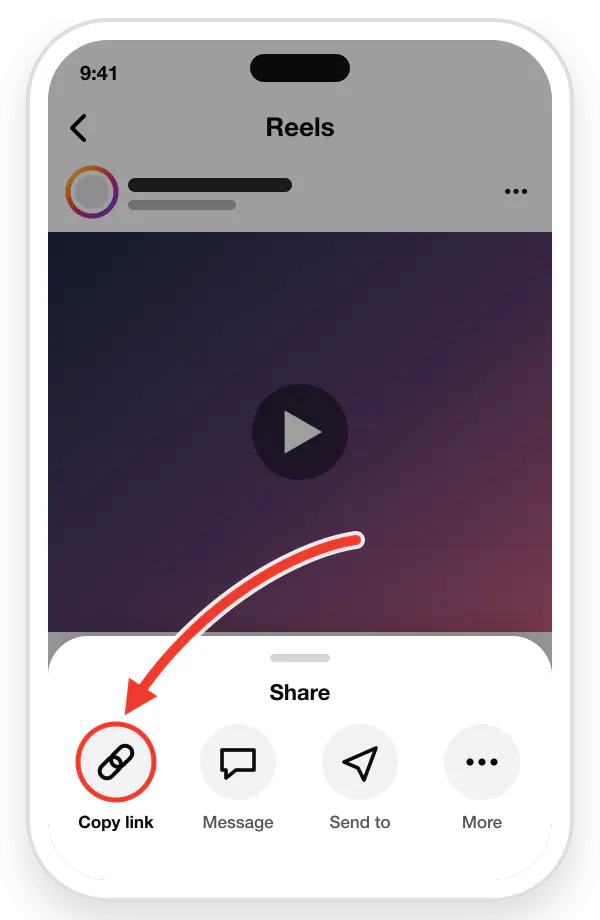
1. Open the Reel in Instagram, tap the **three dots** or the **share arrow**, and choose **Copy link**.
2. Go to [reelsdl.net](https://reelsdl.net/) in your browser.
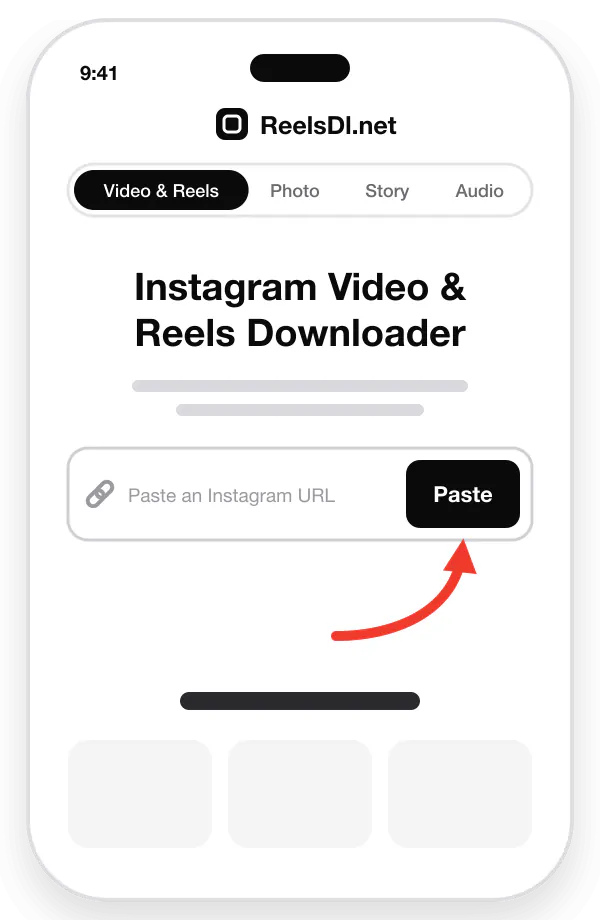
3. Tap **Paste**, or paste the link into the box yourself. The Reel loads on its own.
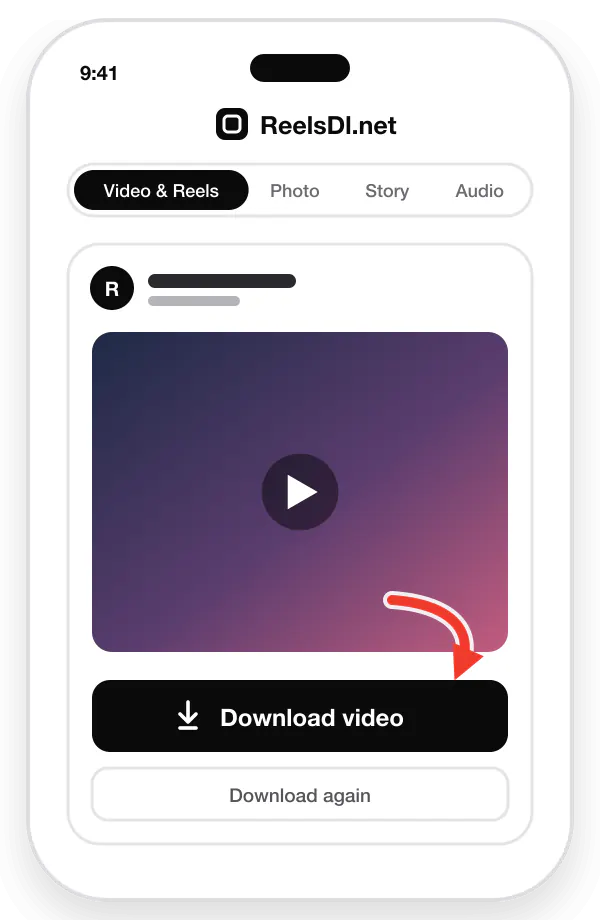
4. Tap **Download video** on the preview.
Copy the linkPaste it hereDownload
It works the same way in Safari on iPhone, Chrome on Android, and any browser on a computer. There is no app to install and no Instagram login. On iPhone the file goes to the Files app first; the guide to [saving Reels in your gallery](https://reelsdl.net/blog/save-instagram-reels-in-gallery-with-music) shows how to move it to Photos.
### 2. Keep the original of your own Reel
If the Reel is yours, the cleanest copy is the one you never gave to Instagram.
- **Edit outside Instagram.** Build the Reel in a video editor, export it to your camera roll, then upload that file. Your master copy has no watermark and has not been through Instagram's compression.
- **Save before you post.** In the Reels editor, the download arrow saves the clip without a watermark. Be aware that a song from Instagram's music library is left out of that saved copy.
- **Already posted?** If your account is public, treat your Reel like any other: copy its link and download it. This also keeps the music.
### 3. Screen record and crop
Screen recording captures whatever is on the display, including the like button, caption, and username. You then crop the frame to hide them, which throws away part of the picture and lowers the resolution. Keep this as a last resort for a Reel you cannot save any other way.
## Things a downloader cannot remove
- **Watermarks baked in by the creator.** A logo, a handle typed in the corner, or a watermark from another app that was on the video before upload is part of the image.
- **Captions and stickers.** Text, GIFs, and stickers added in the Reels editor are flattened into the video.
- **Private Reels.** These cannot be fetched by link at all.
## Before you repost a clean Reel
The watermark exists to keep credit attached to the creator. Taking it off does not take away their rights to the video.
- **Ask first.** A short message to the creator is usually all it takes.
- **Credit in the caption.** Tag the original account where people will see it.
- **Do not expect reach from reposts.** Instagram has said it favours original content in recommendations, and that it replaces reposts with the original where it finds one. A re-uploaded Reel from someone else is unlikely to travel far.
For your own content the picture is simpler: a clean file is exactly what you want when you cross-post the same Reel to TikTok, YouTube Shorts, or Facebook, where another platform's logo can hurt how the video is treated.
## If the download does not work
A link that fails is almost always private, deleted, or copied from the wrong place. The checklist in [Instagram Reels not saving](https://reelsdl.net/blog/instagram-reels-not-saving-to-camera-roll) covers each case. If you are on a computer, see [how to download Instagram Reels on a laptop or PC](https://reelsdl.net/blog/download-instagram-reels-on-laptop-pc-mac).
## Frequently asked questions
### Why do downloaded Instagram Reels have a watermark?
Instagram adds its logo, the creator's username, and the audio attribution to Reels saved with the in-app Download option. It is there so the video stays credited to the account that made it when it is shared elsewhere.
### Is there a way to turn the Instagram watermark off?
No. Instagram has no setting that removes the watermark from Reels saved with its Download button. To get a clean copy, save the original file by link, or keep your own video before uploading it.
### Do I need to log in to download a Reel without a watermark?
No. ReelsDl.net never asks for your Instagram username or password. It only needs the link to a public Reel. Avoid any downloader that asks you to sign in to Instagram.
### Will a watermark-free download work on iPhone?
Yes. Use Safari, paste the Reel link into ReelsDl.net, and download the video. It saves to the Files app, and Share → Save Video moves it to the camera roll.
### Can I remove a watermark that the creator added themselves?
No. A logo or username that the creator placed in the video before uploading is part of the picture. A downloader gives you the file as it was posted.